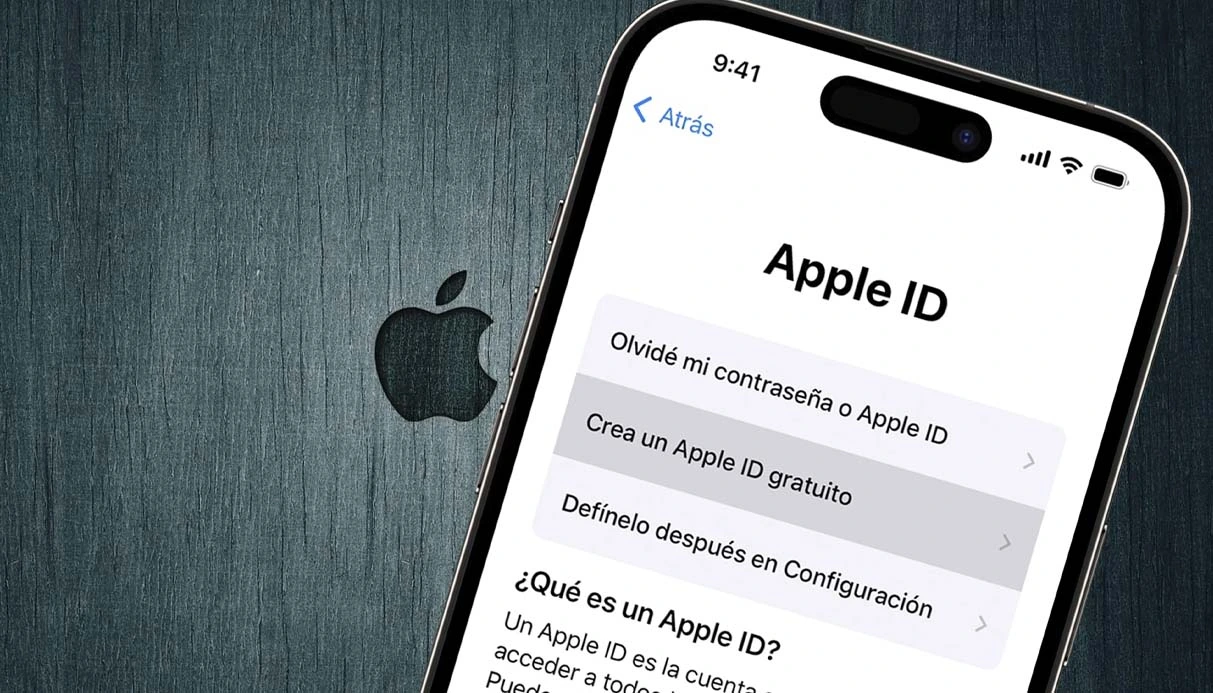
Using one Apple ID on two iPhones can be a convenient and efficient way to access apps, purchases, and iCloud data simultaneously on multiple devices. However, while this practice offers several benefits, it also comes with some challenges, particularly related to privacy and data sharing. Understanding how to manage and separate your data effectively plays a key role in making the most of Apple ID without compromising your privacy.
In this comprehensive guide, you’ll learn everything about using the same Apple ID on two iPhones, the benefits and drawbacks, and how to separate the devices when needed.
Benefits and Drawbacks of Using One Apple ID on Two iPhones
Benefits:
- Access to purchased apps, music, and books on both devices.
- Shared iCloud storage for files, backups, and photos.
- Ability to track both devices through Find My iPhone.
Drawbacks:
- Automatic synchronization of private data such as:
- Photos and videos
- iMessages and FaceTime calls
- Contacts, calendars, notes, and Safari history
- Potential privacy issues when sharing devices with another person.
Two Main Methods to Use One Apple ID on Two iPhones
- Family Sharing (Recommended for Privacy)
Family Sharing is the ideal solution if you want to share purchases and subscriptions without exposing personal data like messages, photos, or contacts.
How to Set Up Family Sharing:
- Open Settings on your primary iPhone.
- Tap your Apple ID profile at the top.
- Select Family Sharing.
- Follow the on-screen instructions to create a Family Group (up to 6 people).
- Invite family members to join.
With Family Sharing:
- Each person keeps their own Apple ID and private data.
- Shared purchases (Apps, Music, iCloud, Apple TV+) remain accessible.
- Privacy is fully maintained.
Best for: Families or friends who want to share purchases without sharing personal data.
Signing In with the Same Apple ID on Both iPhones
This method involves logging into the exact same Apple ID on both iPhones, allowing full synchronization of:
- Apps and purchases
- Photos and iCloud data
- Messages, contacts, and even call history
How to Limit Data Sync:
If you prefer this method but want to avoid full data sharing:
- On the second iPhone, go to Settings > Apple ID > iCloud.
- Manually turn off services you don't want to sync (e.g., Photos, Contacts, Messages).
- Consider creating different passcodes or Face IDs for added security.
Best for: Individuals who own two iPhones (e.g., personal and work devices) and want seamless integration.
How to Separate Two iPhones from One iCloud Account
To protect your privacy or simply separate devices, you can easily disconnect one iPhone from the shared Apple ID.
Method 1: Directly from iPhone Settings
- Go to Settings on the iPhone.
- Tap on your Apple ID profile.
- Scroll down and select the device you want to remove.
- Tap Remove from Account and confirm by entering your Apple ID password.
This method ensures that the devices stop sharing personal data immediately.
Method 2: Using iTunes on Windows or Mac
- Open iTunes on your computer.
- Go to Account > View My Account.
- Under Cloud, select Manage Devices.
- Find the device and click Remove.
This is an excellent method if you prefer managing devices through your computer.
create apple id without phone number
Key Takeaways: Should You Use One Apple ID on Two iPhones?
Using the same Apple ID on two iPhones is useful for:
- Accessing the same purchased content.
- Managing both devices under one Apple account.
- Sharing subscriptions and cloud storage.
However, without proper settings, this can lead to:
- Unwanted sharing of private messages, photos, and contacts.
- Potential privacy breaches.
Our Recommendation:
- Use Family Sharing if you want shared purchases without sharing personal data.
- Use the same Apple ID only if both devices belong to you personally and you are comfortable with full synchronization.
In conclusion, deciding whether to use one Apple ID on two iPhones depends on your privacy needs and the purpose of sharing. For family or friend groups, Family Sharing is the safest choice. For individuals using multiple devices, logging into the same Apple ID while customizing iCloud sync settings works well.
Additionally, if you're managing multiple Apple IDs or require extra verification for your accounts, you might find it helpful to buy virtual number for creating or securing your Apple IDs and other online accounts safely.