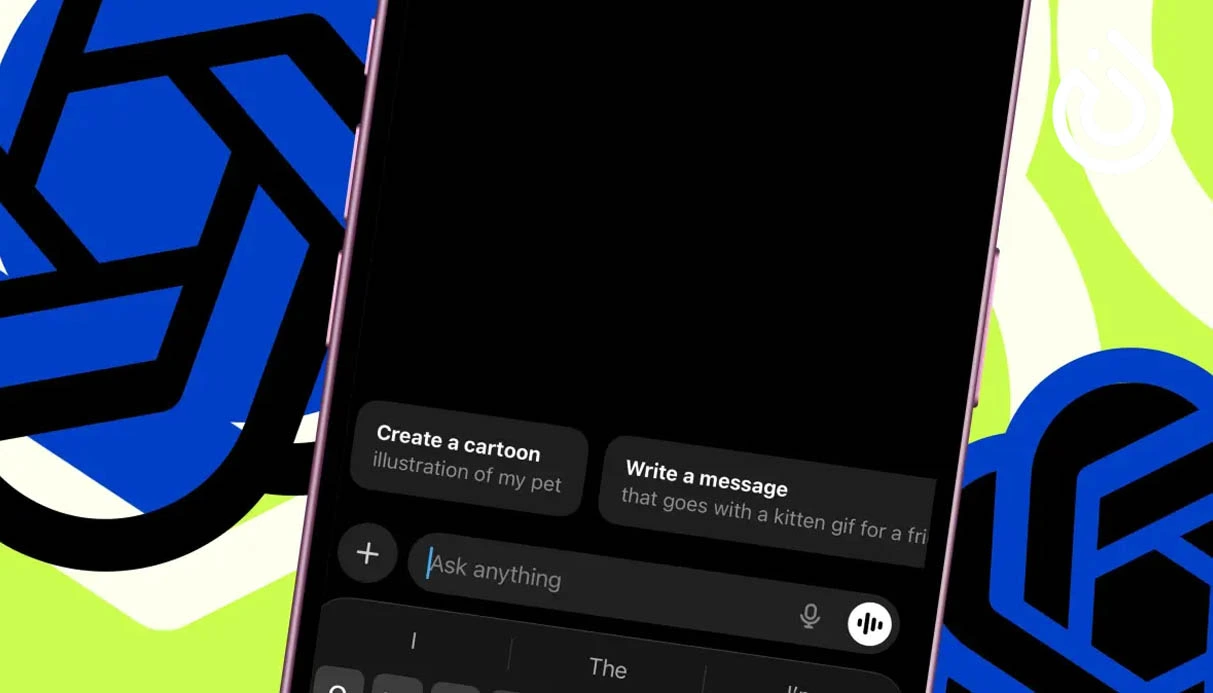
Many ChatGPT users have never explored the Settings menu, even though it offers useful ways to customize the language, appearance, privacy, security, and response style of the AI assistant. In this complete ChatGPT settings guide, we explain the main options, what they do, and where to find them on desktop and mobile devices.
Where Are ChatGPT Settings?
On the web and desktop versions, select your profile icon in the bottom-left corner and click Settings. On Android and iPhone, open the side menu, tap your profile, and find the Settings section.
The layout is similar across devices, although the location of some icons may differ. If you are new to the platform, learning what ChatGPT is and how it works can help you understand these options more easily.
What Do ChatGPT Settings Do?
ChatGPT settings help you manage different parts of your account:
Setting | Main purpose |
|---|---|
General | Change the interface language |
Appearance | Customize themes, colors, and visual style |
Notifications | Manage email and push notifications |
Profile | View account information and activity statistics |
Security and login | Manage login methods, sessions, and authentication |
Account | Manage account details, subscription, and deletion |
Trusted Contact | Set up a trusted person for eligible safety-related support |
Pet | Choose and customize a virtual companion, where available |
Billing | Review invoices and payment methods |
Personalization | Customize response style, memory, and instructions |
Voice | Choose voice settings and conversation options |
Data Controls | Manage chat history, data use, and exports |
Apps / Plugins | Connect supported third-party services |
General Settings: Change the ChatGPT Language
The General section lets you choose the language of the ChatGPT interface. Your device language may be detected automatically, but you can also select another supported language manually.
Keep in mind that interface language and conversation language are not necessarily the same. You can use ChatGPT in one interface language while asking questions in another.
Appearance Settings: Customize the Interface
The Appearance menu allows you to personalize how ChatGPT looks. Depending on the available options, you may be able to adjust:
Visual style: Choose the overall interface style.
Mode: Select the display mode.
Theme: Change the interface color scheme.
Accent: Customize highlighted elements and interactive controls.
Background: Adjust the background color.
Foreground: Change the color of text and other foreground elements.
These options help create a more comfortable ChatGPT experience.
Profile Settings: View Your Account Activity
The Profile section displays account information and usage statistics. Depending on availability, you may find:
Profile picture: Change your account image.
Name: View your registered name.
Lifetime tokens: See total token usage.
Peak tokens: View your highest token usage.
Longest streak: Check your longest consecutive usage period.
Current streak: See your current usage streak.
Showcase: View account activities and achievements.
Token activity: Review token usage over time.
The Insights section may also show information about Fast Mode, your most-used reasoning mode, explored skills, and total skills used. Available statistics can vary between accounts.
Eligible personal plans may also offer profile-sharing or invitation options, while Business workspaces can have different invitation settings.
ChatGPT Security and Login Settings
The Security and login section helps protect your account and manage access. Important options include:
Multi-Factor Authentication: Adds an extra verification step during login.
Active Sessions: Shows devices and browsers currently signed in.
Log out of all devices: Ends active sessions other than the current one. The change may take up to 30 minutes.
Passkeys and security keys: Use supported security keys or passkeys to sign in.
Password: Manage your account password.
Authenticator app: Use time-based verification codes.
Text message: Receive a verification code through SMS or WhatsApp where supported.
Security history: Review account sign-ins and security changes.
Sign in with ChatGPT: Review connected websites and applications.
Advanced account security: Enable additional account protection.
Lockdown mode: Restricts certain external access to help protect against potentially harmful instructions.
Enforce CSP for custom apps: Applies content security restrictions to supported custom apps.
Device code sign-in: Supports device-based sign-in for compatible tools and applications.
Review active sessions regularly and remove access you do not recognize.
Account Settings: Manage Your ChatGPT Account
The Account section contains details such as your name, username, email address, subscription plan, GPT Builder profile, and registered age information.
You may also find the Delete account option. Use it carefully because account deletion is permanent and may remove access to associated information and services.
Trusted Contact: Add a Trusted Person
Trusted Contact allows eligible users to nominate someone they trust for certain safety-related situations. According to OpenAI's description, if its systems and trained reviewers identify a serious safety concern involving suicide-related conversations, the nominated contact may be notified.
Both the account holder and the invited person must meet the applicable age requirements, and the invited person must accept the invitation.
Pet: Choose a Virtual Companion
The Pet feature lets users select or customize a virtual companion in ChatGPT, where available. It may display activity or task progress and can be personalized.
On desktop, the companion may appear over other application windows. On the web, its availability is limited to supported ChatGPT Work conversations.
Billing Settings: Manage Payments and Subscriptions
The Billing section helps you review subscription and payment information. It may include:
Billing information: Account billing details.
Billing email: The email address used for billing communications.
Payment methods: Saved payment options and controls for adding or managing them.
Available payment options depend on your subscription and purchase method.
ChatGPT Notification Settings
Notifications control when ChatGPT sends email or push alerts. You may receive notifications when a long-running task, such as Deep Research, is complete or when a response is ready.
Depending on your account, notification categories may include:
Codex: Updates about coding tasks.
Group chats: New group conversation messages.
Health: Updates related to supported Health features.
Library: Shared files, folders, and access requests.
Marketing: News about new ChatGPT features.
Personalized tips: Suggestions for using ChatGPT.
Projects: Invitations to shared projects.
Responses: Alerts when longer requests are complete.
Tasks: Updates about scheduled tasks.
Usage: Notifications about usage-limit resets.
You can usually manage email and push notifications separately.
Personalization: Customize ChatGPT Responses
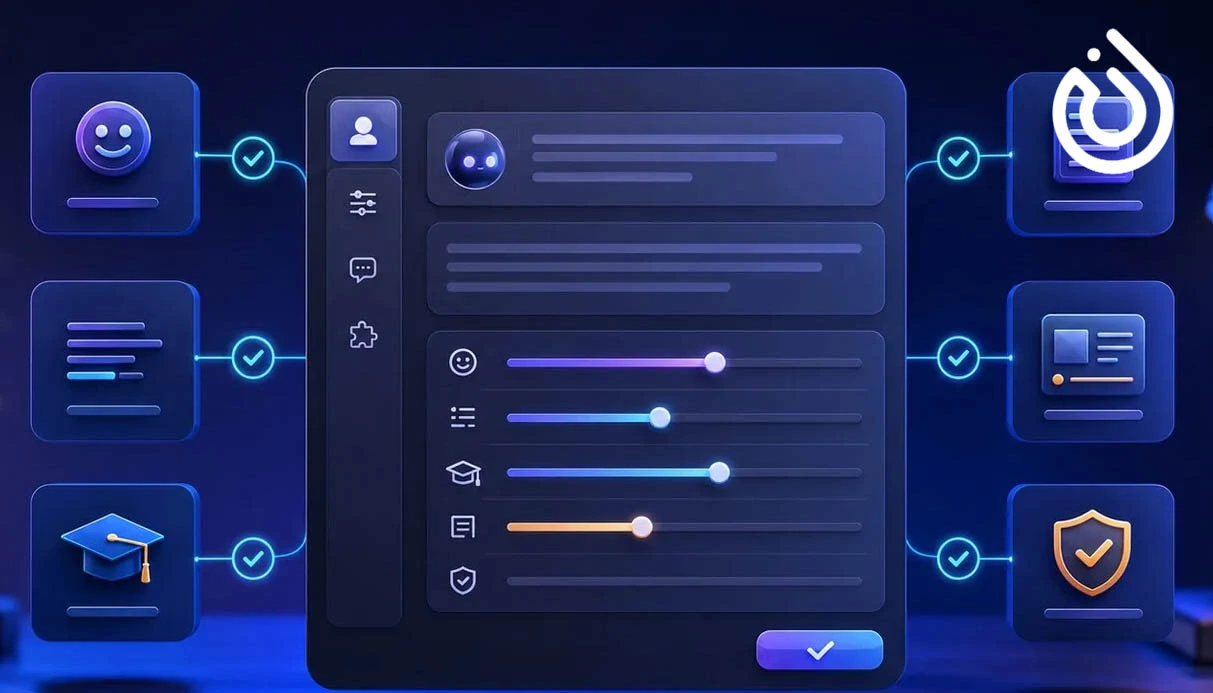
Personalization is one of the most useful areas of ChatGPT settings. It helps you define how the assistant responds and what information it may use in future conversations.
Base Style and Tone
Choose a default response style that matches your needs. Available options may include:
Default: A balanced response style.
Professional: Formal and work-oriented.
Friendly: Warm and conversational.
Candid: Direct and straightforward.
Quirky: Creative and playful.
Efficient: Concise and practical.
Cynical: More sarcastic in tone.
The available styles and their behavior may change as ChatGPT is updated.
Custom Instructions
Custom Instructions let you provide information about your preferences and explain how you want ChatGPT to respond. For example, you can request concise answers, a friendly tone, or explanations suitable for beginners.
Memory
When enabled, Memory can help ChatGPT retain useful information, such as preferences and goals, for future conversations. Memory availability and controls depend on the account and current product settings.
ChatGPT Voice Settings
The Voice section lets you customize voice conversations. Available voice options may include Arbor, Breeze, Cove, Ember, Juniper, Maple, Sol, Spruce, and Vale.
You may also be able to choose a voice conversation mode:
Live: Designed for natural, back-and-forth conversations.
Advanced: Provides advanced voice capabilities on supported devices.
Standard: Offers a simpler voice experience.
Voice features, including camera or screen sharing, depend on the selected mode, device, and account eligibility.
Data Controls: Manage Privacy and Chat History
Data Controls help you manage how your information is used and stored.
Improve the model for everyone: Controls whether your conversations may be used to improve models.
Shared Links: Review and revoke links to shared conversations.
Export Data: Request a downloadable copy of account information and conversations.
Archived Chats: Review, restore, or delete archived conversations.
Delete all chats: Remove conversations from your chat history. Use this option carefully.
If you only want to remove one conversation, use the individual chat deletion option instead of deleting all chats.
Other ChatGPT Settings
Other sections may include:
Connected Apps / Apps / Plugins: Connect supported services such as Google Drive, SharePoint, Gmail, and Slack. Availability depends on your plan and workspace permissions.
Usage / Analytics: Review usage information or available credits.
Cloud Browser: Manage supported cloud-based browsing and work options.
Storage: Review uploaded files and documents.
Safety / Parental Controls: Manage eligible safety and parental controls.
Keyboard: View keyboard shortcuts for faster navigation.
Why Are Some ChatGPT Settings Missing?
Not every user sees the same ChatGPT settings. Availability can depend on several factors:
Web vs. Mobile
Some features are available only on the web or desktop, while others are designed for mobile devices. For example, certain voice and screen-sharing features are mobile-focused, whereas Cloud Browser options may be more prominent on desktop.
Personal Accounts vs. Workspaces
Workspace administrators can restrict access to certain features, including connected apps and data controls. Personal accounts may have different settings.
Gradual Feature Rollouts
OpenAI releases some features gradually. As a result, a new setting may appear for one user before it becomes available to others.
Subscription and Region
Some features may be limited to specific plans or regions. Your subscription type can affect which tools and settings you can access.
Outdated Applications
An older version of the Android or iOS app may not display all available options. Update the official ChatGPT app to check whether the missing settings become available.
Conclusion: How to Get the Most Out of ChatGPT Settings
Understanding ChatGPT settings helps you personalize responses, manage memory, control notifications, improve account security, and protect your privacy. By reviewing each section, you can make ChatGPT more useful for your daily tasks.
Some options may differ depending on your device, region, subscription, or workspace. Always check the latest official OpenAI documentation before making important account or security changes. If you need a separate phone number for online verification or account registration on supported services, you can also explore buy a virtual number from a reputable provider.